Help · Bring in transactions
Connecting your bank
Connect your bank to Tallybook with bank sync, or import CSV, OFX and QFX files for free. How each works, what it costs, and what stays private.
There are two ways to bring in your bank’s transactions. Bank sync brings them in for you. File import is free and works with any bank.
| Bank sync | File import | |
|---|---|---|
| Banks | Most US banks and cards, through Plaid | Any bank with CSV, OFX or QFX download |
| Plan | Personal ($20 a year) or above | Free |
| Keeps itself up to date | Yes | No, import a file when you like |
Bank sync
Bank sync comes with Personal and every plan above it. We set it up for you, so you don’t need a developer account or any keys of your own.
- Paste your license key into Settings → License.
- Go to Banking → Connect a bank.
- Pick your bank and sign in on Plaid’s page. That’s it.
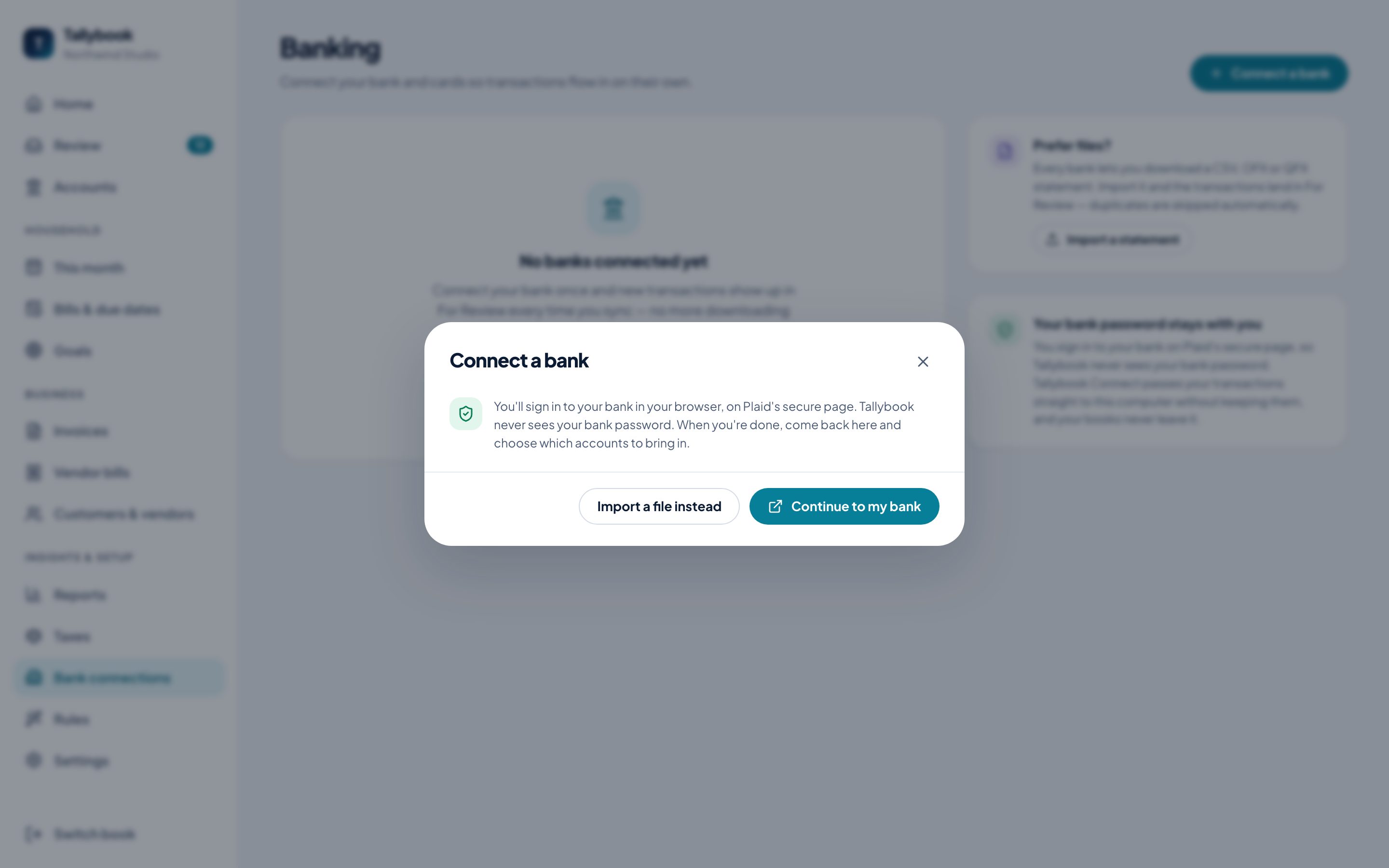
What stays private
- Your bank password goes only to Plaid’s sign-in page. Tallybook never sees it, and neither does the service we run.
- Your books never leave your computer. Bank sync runs through Tallybook Connect, a small service run by Tallybook. It holds our Plaid keys, checks that your plan is active, and passes your transactions straight to your computer. It doesn’t store them.
- What Connect does keep. It stores, encrypted, the access token for your bank and your license key. That’s so it can disconnect your banks when a plan ends. Nothing else about you or your accounts.
If your plan ends
Everything else you unlocked keeps working, and your books are never locked, but bank sync stops. After a grace period of about 30 days, Tallybook Connect disconnects your banks and deletes what it kept. Transactions already in your books stay there. Renew and connect again whenever you like.
If your bank asks you to sign in again
Banks sometimes expire a connection. Click Reconnect next to the account and sign in on the bank’s page again.
Connected with SimpleFIN or your own Plaid keys?
Older connections made through SimpleFIN, or through Plaid with your own keys, keep syncing and can still be reconnected. New connections go through bank sync above.
File import (CSV, OFX, QFX)
Download a statement from your bank’s website, then Review → Import file. This is free on every plan.
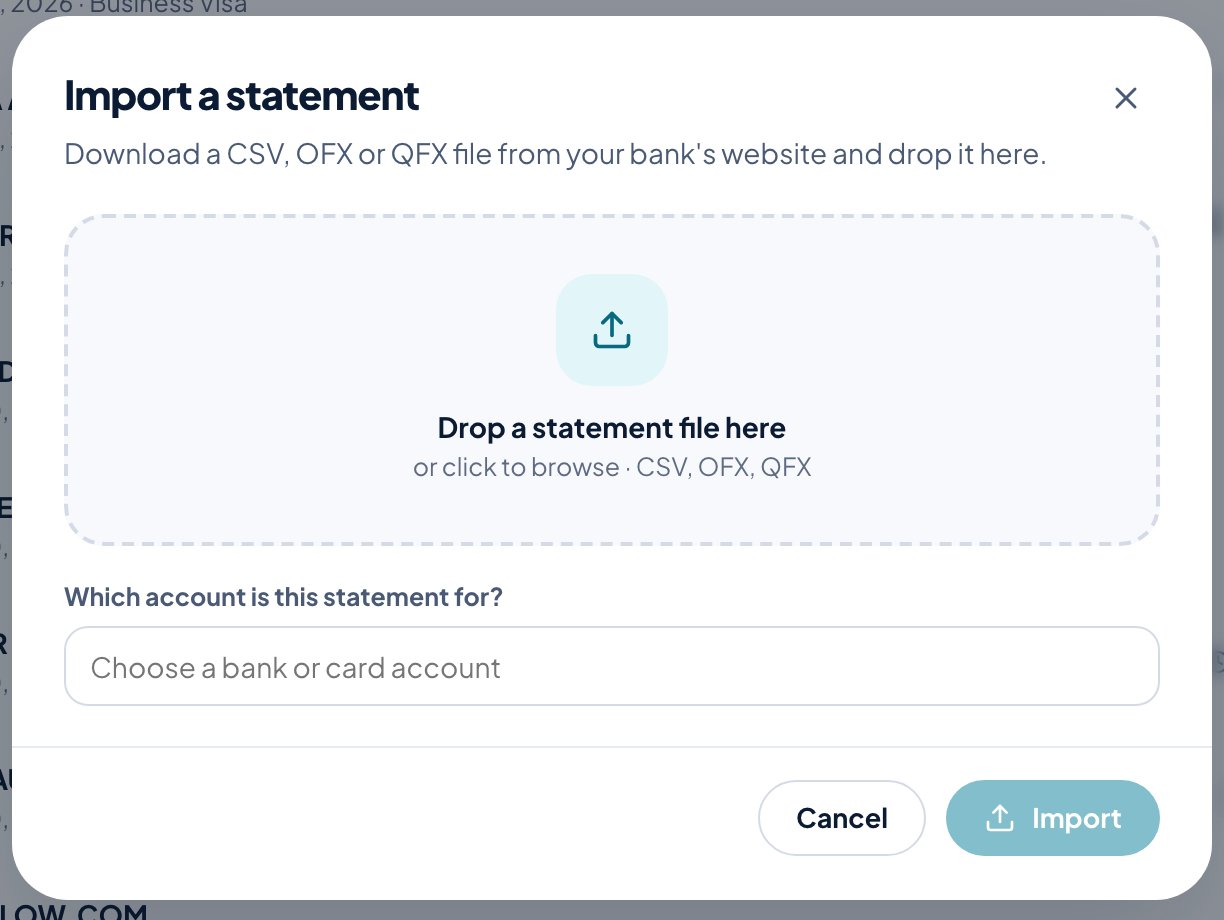
- OFX/QFX (“Quicken” or “Money” format) is the best choice when offered: it carries unique transaction ids, so re-importing is always safe.
- CSV works with any bank. Tallybook guesses which columns hold the date, description and amount, and shows a preview so you can confirm that money out comes through negative. If your bank lists purchases as positive numbers, switch on Flip signs.
- Re-importing an overlapping date range is safe. Duplicates are recognized and skipped.
Synced or imported, new transactions wait in For review until you categorize them.
Start dates and opening balances
When you link an account you choose a start date. Transactions before it are ignored. Then you set the account’s opening balance as of the day before. Tallybook suggests one by working backward from the bank’s current balance. Your first reconciliation confirms it.