Help · Run the business
Invoices
Bill a customer, send the invoice, and record the payment when it comes in.
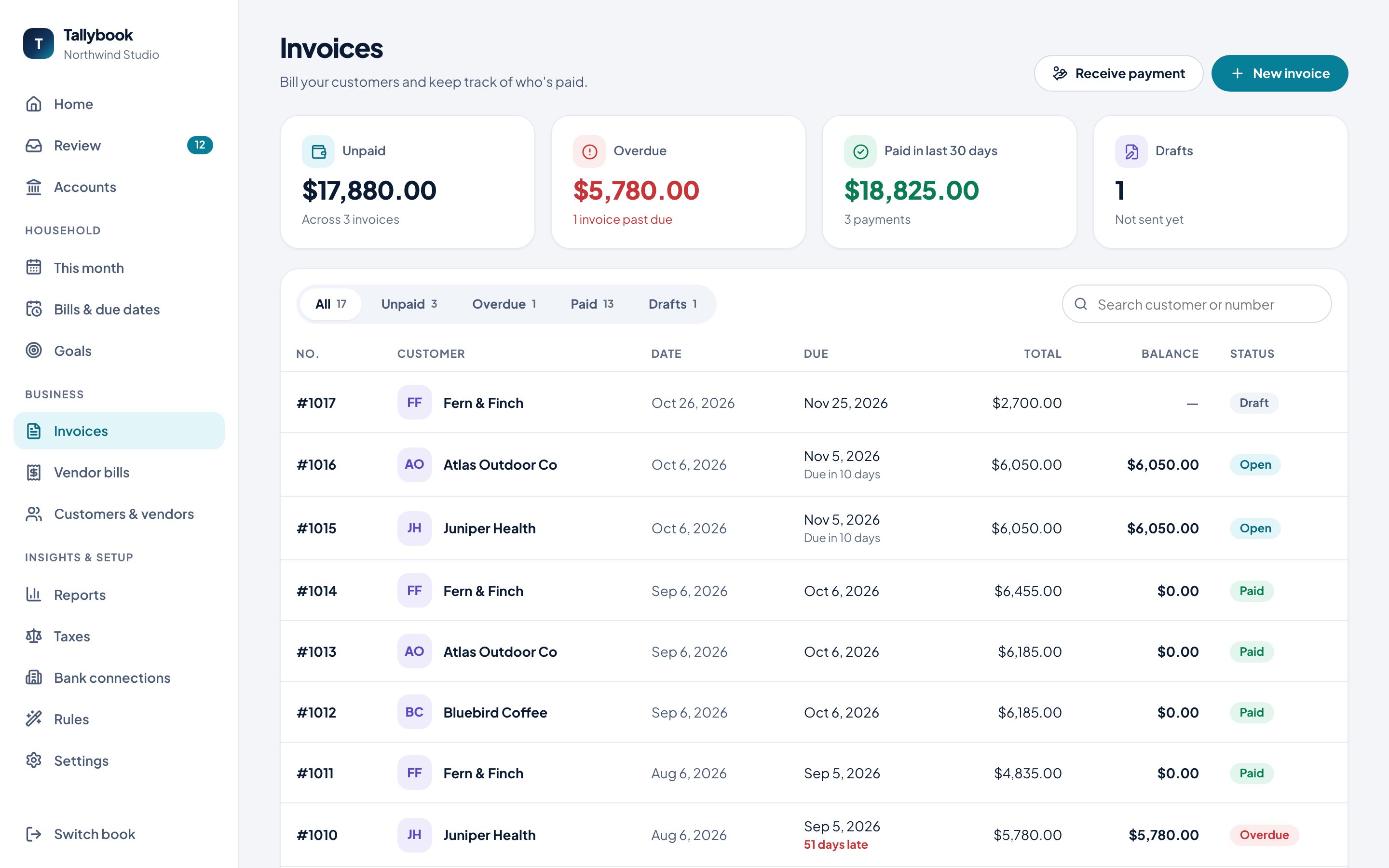
Invoices shows what customers owe you and who’s paid. The cards at the top total what’s Unpaid, Overdue, Paid in last 30 days, and the Drafts you haven’t sent. Filter the list with All, Unpaid, Overdue, Paid and Drafts.
Create an invoice
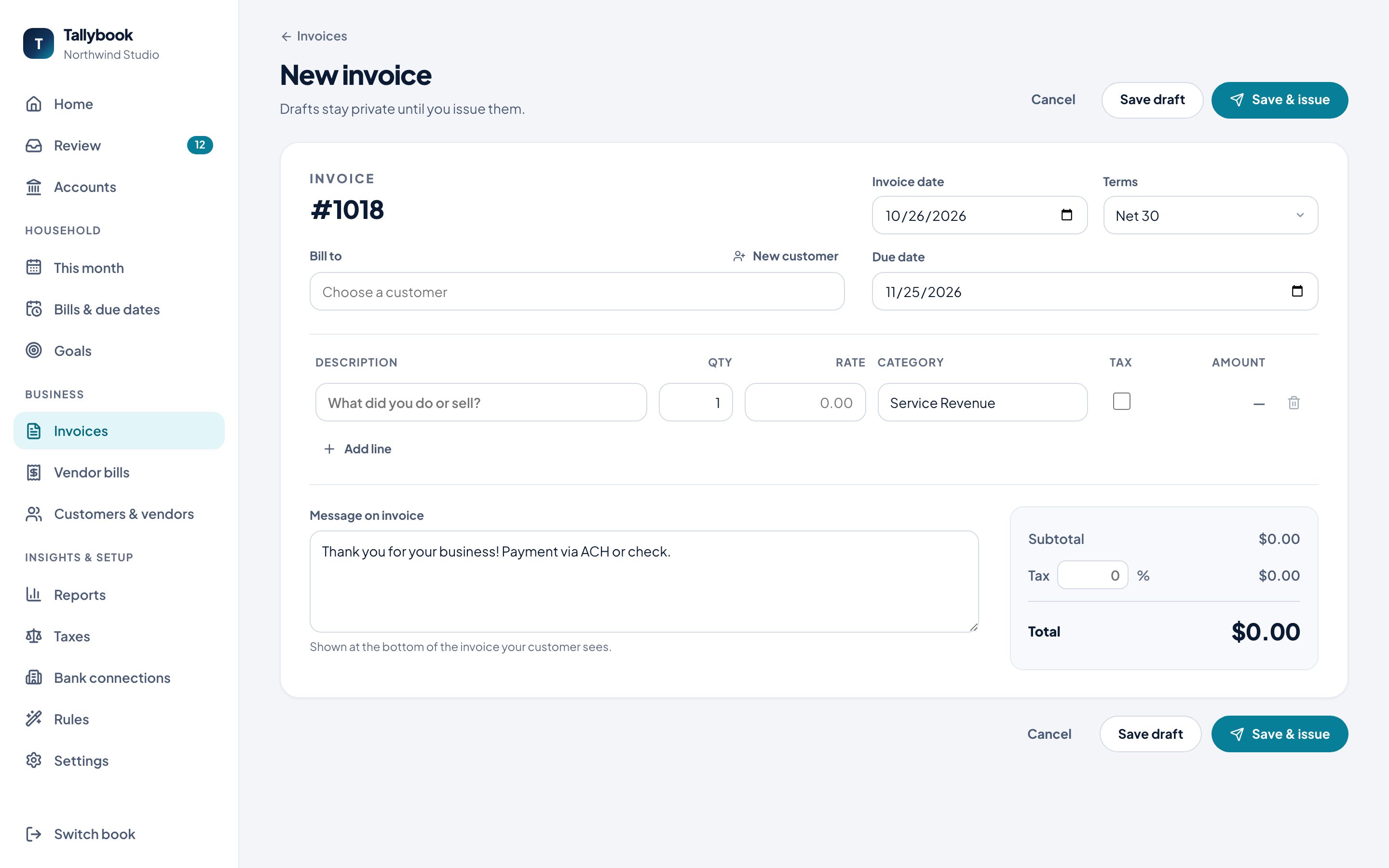
- Click New invoice.
- Under Bill to, choose the customer, or New customer to add one.
- Set the Invoice date and Terms (Due on receipt, Net 15, Net 30, Net 60 or Custom). The Due date follows from the terms.
- Add a line for each thing you’re billing: description, quantity, rate, the income category, and whether it’s taxable. Add line adds another.
- Add a Message on invoice if you like. It’s shown at the bottom of the invoice your customer sees.
- Click Save & issue, or Save draft to finish later. Drafts stay private until you issue them.
Payment terms, the next invoice number, a default sales tax rate and the footer message are set in Settings → Invoices.
Send it
Open the invoice and, under Send it:
- Email to… starts an email to the customer.
- Copy as text copies the invoice to paste anywhere.
- Print / Save PDF gives you a PDF to attach.
Record a payment
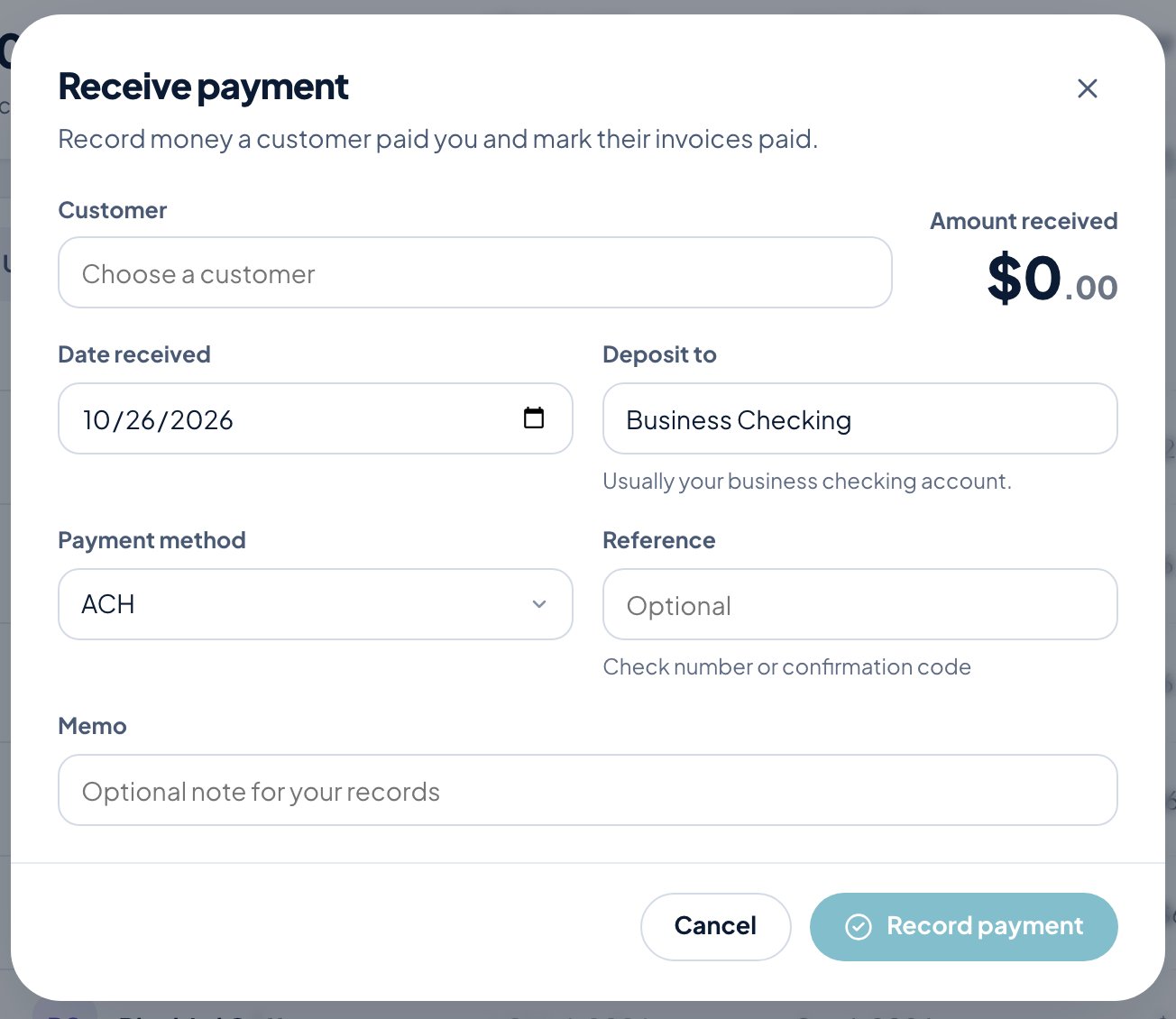
When a customer pays, click Receive payment on the Invoices page, or Record payment on the invoice itself.
- Choose the Customer and enter the Amount received and Date received.
- Deposit to: usually your business checking account.
- Pick the Payment method (ACH, Check, Card, Cash or Other), and add a Reference like a check number if you have one.
- Click Record payment. Their invoices are marked paid.
When the deposit later shows up from your bank, Review offers to match it to this payment, so it isn’t counted twice.
Void an invoice
Open it and click Void to cancel an invoice you’ve issued.
See who’s late at a glance in Reports → Who owes you.