Help · Bring in transactions
Review your transactions
Categorize new bank transactions, accept suggestions in one click, match payments, split and exclude.
New transactions from bank sync or an imported statement don’t go straight into your books. They wait in Review until you say what each one was. The count next to Review in the sidebar is how many are waiting.
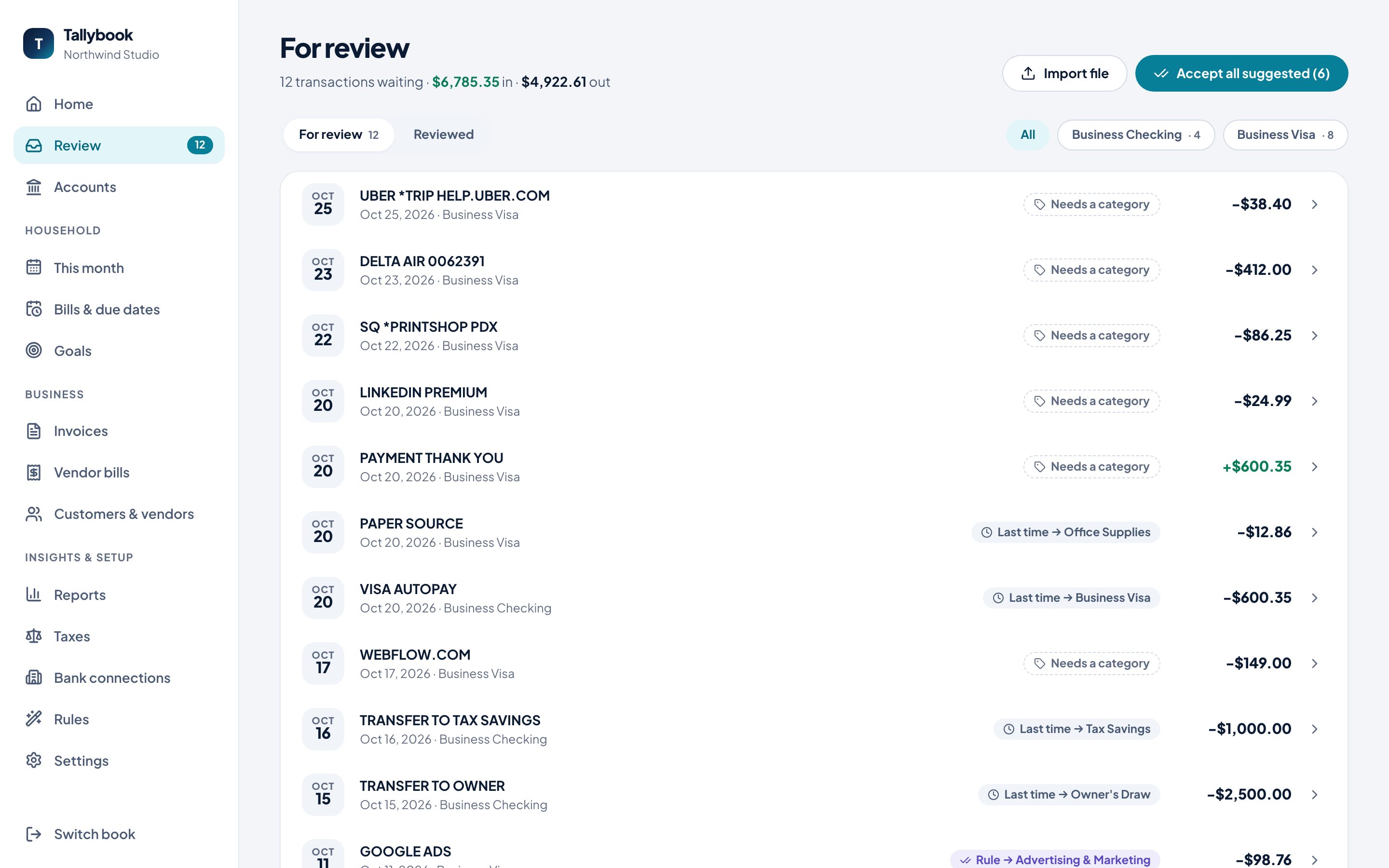
The top of the page shows how many are waiting and the total in and out. Filter by account with the buttons on the right, and switch to Reviewed to see what you’ve already done.
What the labels mean
Each transaction shows Tallybook’s best guess:
| Label | Means |
|---|---|
| Needs a category | No guess yet. You pick one. |
| Last time → … | You categorized something like this before; it suggests the same. |
| Rule → … | One of your rules matched it. |
| Match: … | It looks like something already in your books, like an invoice payment you recorded. |
Categorize a transaction
- Click the transaction to open it.
- Under Where did this go? (or Where did this come from? for money in), choose a category. Type to narrow the list. Categories are grouped by side, so you can file a card charge as business or household.
- Add a Memo if you like.
- Click Accept, or press Enter.
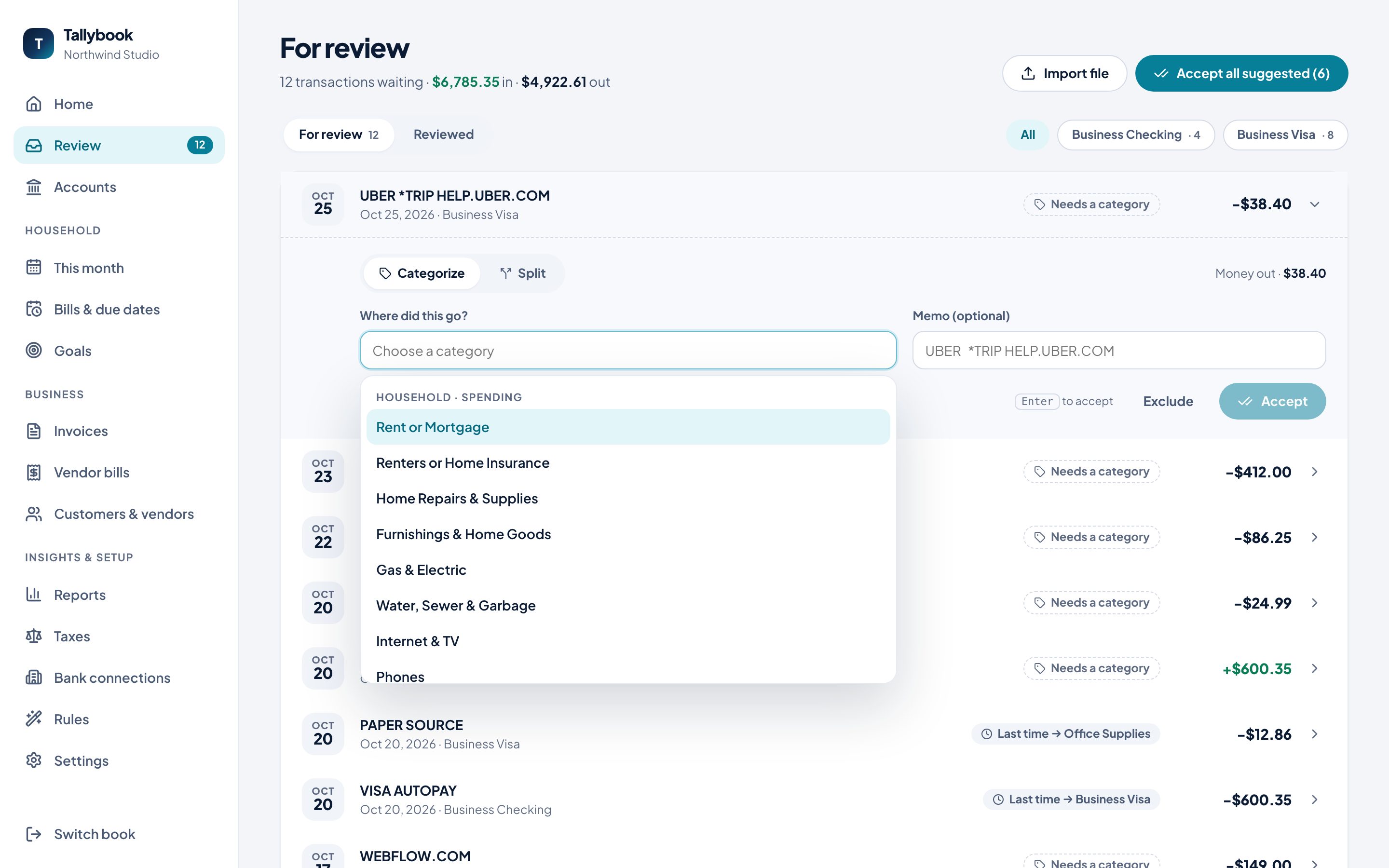
Turn on Remember for… to have Tallybook remember this choice for that description. For more control, make a rule.
Add payee ties the transaction to a contact. Only payments tagged with a payee count toward 1099 totals.
Accept every suggestion at once
Accept all suggested accepts the transactions Tallybook already has a suggestion for; the number on the button says how many. The ones marked Needs a category stay for you.
Match a payment you already recorded
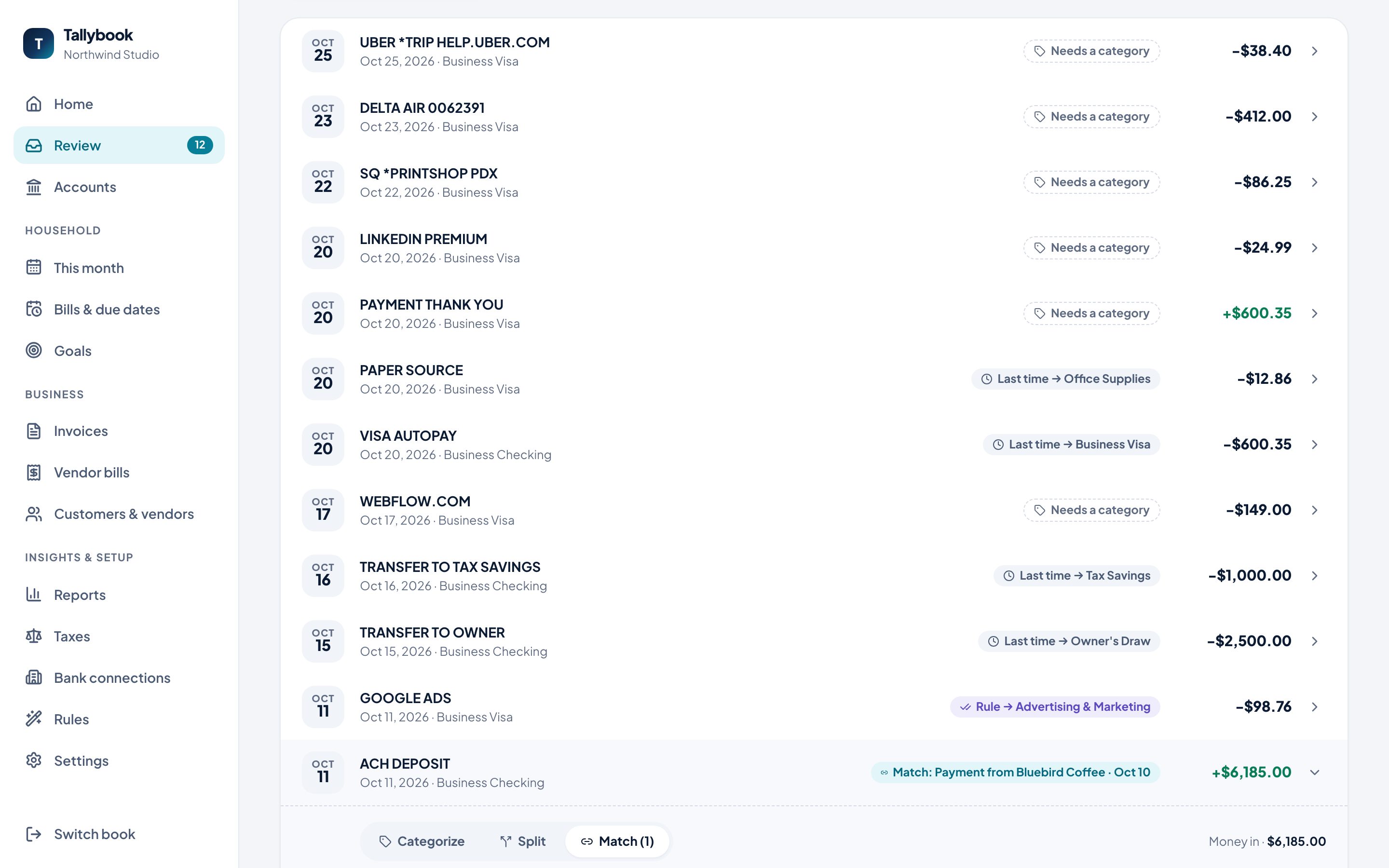
When a deposit looks like a payment you’ve already recorded, it’s labeled Match. Open it and click Match to link the two, so the money isn’t counted twice.
Split, or leave it out
- Split divides one transaction across several categories, like a store run that was half office supplies and half groceries. Add a line per category with its amount and an optional memo. Remaining shows how much is still unassigned, and Fill remaining assigns the rest. Then click Save split.
- Exclude leaves a transaction out of your books, for duplicates or anything that doesn’t belong.